

Introduction
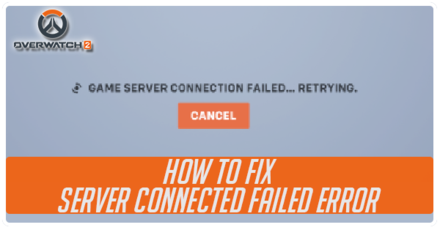
Nothing is more frustrating than launching your favorite game and seeing the message “overwatch game server connection failed.” You are ready to join a match, play with friends, or climb the ranks, but instead, you’re stuck on an error screen.
The good news is that this problem is usually fixable. In many cases, the issue comes from internet problems, server outages, firewall settings, outdated software, or network conflicts. You do not need advanced technical knowledge to solve it.
In this detailed guide, we will explain why the overwatch game server connection failed error appears and show you practical solutions that many players use successfully. Whether you play on PC, Xbox, PlayStation, or another platform, these troubleshooting steps can help you get back into the game quickly.
What Does Overwatch Game Server Connection Failed Mean?
This error appears when your game cannot establish a stable connection with Overwatch servers.
Simply put, your device tries to communicate with the game’s servers, but something interrupts the connection.
The interruption can happen because of:
- Internet connection issues
- Server maintenance
- Network congestion
- Firewall restrictions
- DNS problems
- VPN conflicts
- Outdated game files
- Router issues
The exact reason may vary from player to player, which is why it is important to test multiple solutions.
Common Causes of the Error
Before fixing the issue, it helps to understand the most common causes.
Internet Connection Problems
A weak or unstable internet connection is one of the leading reasons for connection failures.
If your internet frequently disconnects or experiences high latency, the game may struggle to reach the server.
Server Downtime
Sometimes the problem is not on your side at all.
Game developers occasionally perform maintenance or experience unexpected outages that affect server availability.
Firewall and Security Software
Firewalls and antivirus programs are designed to protect your computer. However, they may sometimes block game connections by mistake.
Network Configuration Issues
Incorrect DNS settings, router configurations, or network conflicts can prevent proper communication with game servers.
Outdated Game Version
Running an outdated version of Overwatch can lead to compatibility issues and connection errors.
Basic Fixes to Try First
Let’s start with the easiest solutions.
Restart the Game
This sounds simple, but it often works.
Close Overwatch completely and reopen it.
Temporary connection glitches can disappear after a fresh launch.
Steps
- Exit the game.
- Close the launcher completely.
- Wait 30 seconds.
- Restart the launcher.
- Open Overwatch again.
Restart Your Computer or Console
A system restart clears temporary network issues and software conflicts.
Many players fix connection problems simply by rebooting their device.
Check Your Internet Connection
Run a speed test and confirm that your connection is stable.
Look for:
- Stable download speed
- Stable upload speed
- Low ping
- No packet loss
If other websites or online games are also having problems, your internet connection may be the main issue.
Check If Overwatch Servers Are Down
Before spending time troubleshooting, verify whether the game servers are currently working.
Sometimes developers perform scheduled maintenance or experience unexpected outages.
If many players report connection problems at the same time, waiting for the servers to return online may be the only solution.
Signs of Server Problems
- Large numbers of player complaints
- Login failures affecting everyone
- Sudden disconnects worldwide
- Maintenance announcements
If the servers are down, local troubleshooting will not help until service is restored.
Fix Router and Network Issues
Your router plays a major role in online gaming performance.
Restart Your Router
Power cycling the router refreshes the connection.
How to Do It
- Turn off the router.
- Unplug it.
- Wait 60 seconds.
- Plug it back in.
- Wait for the internet connection to return.
Afterward, launch Overwatch again.
Use a Wired Connection
Wi-Fi is convenient, but it can be unstable.
A wired Ethernet connection provides:
- Better stability
- Lower latency
- Fewer disconnects
- Improved gaming performance
If possible, connect your device directly to the router.
Reduce Network Traffic
Too many devices using the internet at the same time can create connection problems.
Examples include:
- Video streaming
- Large downloads
- Cloud backups
- Video calls
Try pausing these activities while gaming.
Update Overwatch
Running the latest version of the game is essential.
Developers frequently release updates that fix bugs and improve server communication.
How to Check for Updates
PC
- Open the game launcher.
- Check for available updates.
- Install all updates.
Console
- Highlight the game.
- Open update options.
- Install pending updates.
Always restart the game after updating.
Update Your Operating System
An outdated operating system can create compatibility issues.
For Windows Users
Install all available:
- Security updates
- Network updates
- System updates
For Console Users
Ensure your console firmware is fully updated.
New updates often include network stability improvements.
Check Firewall Settings
A firewall may accidentally block game traffic.
Allow Overwatch Through Firewall
You may need to manually add the game as an allowed application.
General Steps
- Open firewall settings.
- Find allowed applications.
- Add Overwatch if necessary.
- Save changes.
- Restart the game.
This allows the game to communicate properly with servers.
Check Antivirus Software
Some antivirus programs can interfere with online games.
Test the Connection
Temporarily disable antivirus protection and test the game.
If the error disappears, add Overwatch to the antivirus exceptions list.
Remember to re-enable protection afterward.
Change DNS Settings
DNS servers help your device locate online services.
Sometimes switching DNS servers improves connectivity.
Popular DNS Options
Google DNS
Primary: 8.8.8.8
Secondary: 8.8.4.4
Cloudflare DNS
Primary: 1.1.1.1
Secondary: 1.0.0.1
Many gamers report improved stability after changing DNS settings.
Flush DNS Cache
Your computer stores DNS information locally.
Over time, outdated entries can create connection problems.
Windows Method
- Open Command Prompt as Administrator.
- Type:
ipconfig /flushdns
- Press Enter.
- Restart your computer.
This refreshes stored DNS information.
Disable VPN Services
VPNs can sometimes cause routing problems.
If you are using a VPN:
- Disconnect the VPN.
- Restart the game.
- Test the connection.
Many players find that disabling VPN services resolves the overwatch game server connection failed error.
Reset Network Settings
A complete network reset can remove hidden configuration problems.
Benefits of a Network Reset
- Clears network conflicts
- Reinstalls network adapters
- Restores default settings
- Fixes corrupted configurations
After resetting, restart your device.
Fix Packet Loss Problems
Packet loss occurs when data fails to reach its destination.
Even a fast internet connection can suffer from packet loss.
Symptoms
- Lag spikes
- Rubber banding
- Disconnects
- Server connection failures
Contact your internet provider if packet loss continues.
Improve Gaming Network Stability
Preventing future problems is just as important as fixing current ones.
Best Practices
Use Ethernet Whenever Possible
A wired connection remains the most reliable option.
Keep Software Updated
Regular updates reduce compatibility issues.
Restart Your Router Occasionally
A fresh restart can prevent network slowdowns.
Avoid Heavy Downloads During Gameplay
Large downloads consume bandwidth and increase latency.
Monitor Internet Health
Check for packet loss, high ping, and network instability regularly.
Platform-Specific Solutions
PC Users
If you play on PC:
- Update network drivers
- Update Windows
- Check firewall rules
- Scan and repair game files
- Disable unnecessary background applications
Xbox Users
For Xbox players:
- Test network connection
- Restart the console
- Clear temporary cache
- Verify online service status
PlayStation Users
For PlayStation players:
- Test internet settings
- Restart the console
- Update system software
- Verify network stability
When to Contact Support
If none of the fixes work, it may be time to seek professional assistance.
Contact support if:
- The issue lasts several days
- Only your account is affected
- Error messages continue after troubleshooting
- You suspect account-related issues
Provide detailed information about:
- Your platform
- Error messages
- Internet provider
- Troubleshooting steps already completed
This can speed up the support process.
Frequently Asked Questions
1. Why does Overwatch keep saying game server connection failed?
The error usually occurs because of internet issues, server downtime, firewall restrictions, DNS problems, or outdated game files.
2. Can a slow internet connection cause this error?
Yes. Slow or unstable internet connections can prevent your device from maintaining a stable connection with game servers.
3. Does using a VPN affect Overwatch connections?
Sometimes. Certain VPN routes can increase latency or interfere with server communication, causing connection failures.
4. Will reinstalling Overwatch fix the problem?
In some cases, yes. Reinstalling can replace corrupted files that may be causing connection issues.
5. Is the error always caused by my computer or console?
No. Sometimes the issue is related to server maintenance or outages affecting many players at once.
Conclusion
Seeing the overwatch game server connection failed message can be frustrating, especially when you are eager to jump into a match. Fortunately, most connection problems can be solved with a few practical troubleshooting steps.
Start with the basics by checking your internet connection, restarting your game, and verifying server availability. Then move on to advanced solutions such as updating software, changing DNS settings, checking firewall permissions, and resetting network configurations.
The key is to work through the fixes one by one. In many cases, the solution is surprisingly simple. By following the methods covered in this guide, you can improve your chances of restoring a stable connection and getting back to enjoying Overwatch without interruptions.
You May Also Read
for more visits wirebusiness.co.uk

1 Comment
Pingback: RoarLeveraging Business Infoguide by Riproar: Scaling Your Business Strategically Best 10 RoarLeveraging Business Growth Hacks - Wire Business