

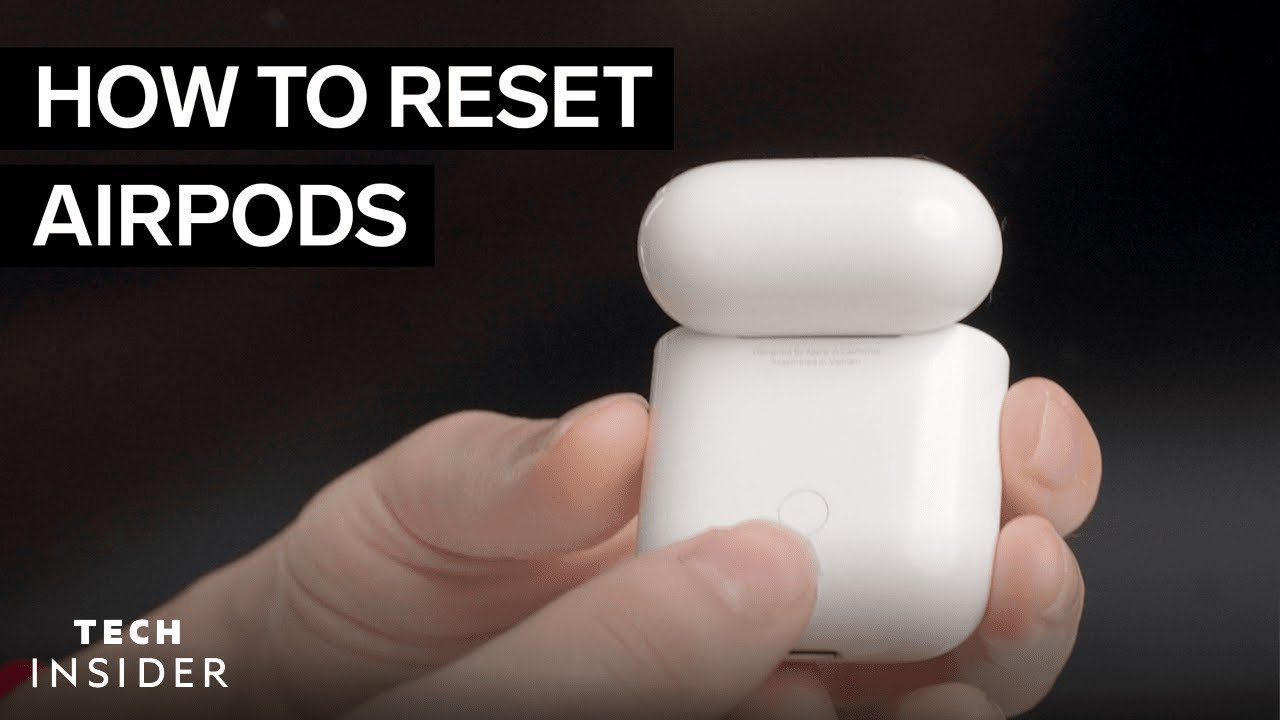
If your AirPods are not connecting, charging properly, switching devices, or producing clear sound, a reset can often solve the problem. This guide explains how to reset AirPods safely, why resetting helps, and what to do before and after the reset.
Introduction
AirPods are designed to connect quickly, switch smoothly between Apple devices, and deliver clean wireless audio with very little effort from the user. However, like any wireless device, they can sometimes develop small software or connection problems. Your AirPods may stop pairing with your iPhone, disconnect during calls, show the wrong battery percentage, play sound from only one side, or refuse to appear in Bluetooth settings. In many of these situations, learning how to reset AirPods can save time and avoid unnecessary repairs. A reset does not physically repair damaged hardware, but it refreshes the connection settings and gives your AirPods a clean start.
Resetting AirPods is also useful when you are selling them, giving them to someone else, pairing them with a new phone, or fixing repeated Bluetooth errors. Many users only try charging or turning Bluetooth off and on, but a proper reset goes one step further by removing the old pairing relationship and preparing the AirPods to connect again as if they were new. The process is simple, but the exact method depends on the model you own. AirPods, AirPods Pro, AirPods 4, and AirPods Max do not all reset in the same way, so it is important to follow the correct instructions.
What Does Resetting AirPods Mean?
Resetting AirPods means clearing their saved pairing information and restoring their wireless connection behavior to a fresh state. When your AirPods are connected to an iPhone, iPad, Mac, or other device, they store pairing information that helps them reconnect quickly. Over time, this connection data can sometimes become confused, especially if the AirPods have been connected to several devices, used with different Apple IDs, or affected by a software update. A reset removes this old connection memory and allows the AirPods to pair again from the beginning.
It is important to understand that a reset is not the same as simply disconnecting your AirPods. Disconnecting only temporarily stops the Bluetooth connection, while resetting creates a new setup process. This is why a reset is more helpful for repeated issues such as AirPods not appearing in Bluetooth, one AirPod not working, sound cutting out, or the case light behaving strangely. A reset can also help when your AirPods keep connecting to the wrong device or when automatic switching does not work properly between your Apple devices.
When Should You Reset Your AirPods?
You should reset your AirPods when normal troubleshooting steps do not fix the problem. For example, if you have already placed the AirPods back in the case, charged them, restarted your phone, and turned Bluetooth off and on, but the problem still continues, a reset is a smart next step. Resetting is especially useful when your AirPods connect but do not play sound, connect and disconnect repeatedly, show incorrect battery readings, or do not respond properly to touch or button controls.
Another good time to reset AirPods is before giving them to a new user. If your AirPods are still linked to your Apple Account or Find My settings, the next person may have difficulty setting them up fully. A reset helps prepare the AirPods for a new connection, but in some cases, you may also need to remove them from your Apple Account or Find My device list. This is especially important if you are selling used AirPods because the new owner needs to pair them without your account details interfering with the setup.
Before You Reset AirPods
Before starting the reset process, make sure your AirPods and charging case have enough battery. If the case is completely dead, the reset may not work because the status light and internal connection system need power. Place both AirPods inside the case and charge them for a few minutes if needed. Also check that the AirPods are seated properly in the case, because dirty charging contacts or loose placement can stop the case from detecting one of the earbuds.
You should also open Bluetooth settings on your iPhone, iPad, or Mac and forget the AirPods before resetting them. This step removes the old connection from your device and prevents the same problem from coming back after pairing. On an iPhone or iPad, go to Settings, open Bluetooth, tap the information icon next to your AirPods, and choose Forget This Device. This step may seem small, but it is one of the most important parts of the full reset process because it clears the old pairing record from the device you are using.
How to Reset AirPods and AirPods Pro with a Setup Button
For most AirPods models, including earlier AirPods and many AirPods Pro models, the reset process uses the small setup button on the back of the charging case. First, place both AirPods inside the charging case and close the lid. Wait about 30 seconds so the AirPods can settle and reconnect with the case. After that, open the lid and keep the AirPods inside. If the AirPods are still listed in your Bluetooth settings, forget them from your device before continuing.
Once the AirPods are forgotten, keep the case lid open and press the setup button on the back of the case. Hold the button for about 15 seconds until the status light flashes amber and then changes to white. The amber light usually shows that the reset is happening, while the white light means the AirPods are ready to pair again. After the light turns white, bring the AirPods close to your iPhone, iPad, or other device and follow the setup prompt. This is the most common answer to how to reset AirPods, and it works for many standard AirPods and AirPods Pro versions.
How to Reset AirPods 4 and Newer Tap-Case Models
Some newer AirPods models do not use the same back-button reset method. Instead, they use a front-of-case tapping method. To reset these models, place the AirPods in their charging case, close the lid, and wait about 30 seconds. Then open the lid while keeping the AirPods inside the case. Make sure you have already removed or forgotten the AirPods from your Bluetooth settings if they were previously connected to your device.
After opening the lid, double-tap the front of the case three times. The timing should be steady and clear, not too slow or too random. When the reset is successful, the status light should flash amber and then white. Once it turns white, the AirPods are ready to pair again. This method is important because many users look for a physical setup button and think their AirPods cannot be reset when they do not see one. If your case does not have a visible button, the case tap reset method may be the correct solution.
How to Reset AirPods Max
AirPods Max reset differently because they are headphones rather than earbuds with a charging case. If your AirPods Max are acting strangely, first try restarting them. A restart can fix small issues without fully resetting the headphones. However, if the problem continues, you can perform a full reset. To reset AirPods Max, press and hold the Digital Crown and the noise control button at the same time. Keep holding them until the status light changes from flashing amber to flashing white, which usually takes around 15 seconds.
After the reset, your AirPods Max will no longer behave as if they are already paired with your device. You will need to connect them again through the normal setup process. Hold them near your iPhone or iPad and wait for the setup animation, or connect them manually through Bluetooth settings. Resetting AirPods Max can help with charging problems, pairing issues, audio glitches, and cases where the headphones are not responding as expected. However, if the headphones are physically damaged or have a battery fault, a reset may not solve the issue completely.
How to Pair AirPods Again After Resetting
After resetting AirPods, the next step is to pair them again. For AirPods and AirPods Pro, open the charging case near your iPhone or iPad and wait for the setup animation. Tap Connect and follow any instructions on the screen. If you use the same Apple Account across your Apple devices, your AirPods may automatically become available on your Mac, iPad, Apple Watch, and other supported devices after pairing. This is one of the reasons resetting and reconnecting through an iPhone can be very convenient.
If the setup animation does not appear, you can pair manually. Open Bluetooth settings, keep the AirPods case open, and look for your AirPods under available devices. Tap their name to connect. For AirPods Max, open Bluetooth settings and select the headphones from the list if the automatic setup does not appear. After pairing, test both sides, check the microphone, play audio, and confirm the battery level. This helps you make sure the reset worked properly and the AirPods are now functioning normally.
Common Problems a Reset Can Fix
A reset can fix many everyday AirPods problems. One of the most common is when only one AirPod works while the other stays silent. This can happen because one earbud failed to reconnect correctly, the case did not register it, or the Bluetooth connection became confused. Resetting gives both earbuds a fresh connection and often brings the silent side back. However, before assuming it is a software issue, always check for dirt, earwax, or charging problems because one AirPod may not work if it is not charging properly.
Another common issue is poor connection stability. If your AirPods keep disconnecting during calls, cutting out during music, or jumping between devices at the wrong time, a reset can refresh the connection data. It can also help with microphone problems, delayed audio, incorrect battery percentage, and pairing failure after a phone update. While a reset is not a magic fix for every issue, it is one of the safest troubleshooting steps because it does not damage your AirPods or erase personal data from your iPhone.
What to Do If AirPods Will Not Reset
If your AirPods will not reset, first check the battery level of the case and earbuds. A very low battery can stop the reset process from completing. Charge the case using a reliable cable, wireless charger, or USB-C connection depending on your model. Leave the AirPods inside the case for several minutes and then try again. Also clean the charging contacts gently with a dry, soft cloth because dirt inside the case can prevent one AirPod from connecting properly with the charging pins.
If the status light does not flash amber or white, make sure you are using the correct reset method for your model. Some cases have a setup button, while newer models may require tapping the front of the case. If your AirPods are still attached to another Apple Account, you may need to remove them from that account before another user can set them up properly. If none of these steps work, the issue may be related to hardware, battery health, or a damaged charging case, and the AirPods may need professional service.
Does Resetting AirPods Remove Them from Find My?
Resetting AirPods may clear pairing information, but it does not always fully remove them from an Apple Account or Find My list. This matters most when AirPods are being sold, gifted, or transferred to another person. If the AirPods remain linked to your Apple Account, the new owner may see messages about the device being connected to another account. To avoid this, remove the AirPods from your device list before handing them over. This step protects both you and the new user from setup confusion.
To prepare AirPods for someone else, forget them from Bluetooth, remove them from your Apple Account or Find My device list, and then reset them. This creates the cleanest possible handover. If you bought used AirPods and they still appear linked to someone else, the original owner may need to remove them from their account. A reset alone may not be enough in that situation. This is why it is always better to check account status before buying used AirPods from another person.
Difference Between Restarting, Forgetting, and Resetting AirPods
Restarting, forgetting, and resetting AirPods are related but different actions. Restarting is the simplest option and usually means placing the AirPods back in the case, closing the lid, waiting a short time, and using them again. For AirPods Max, restarting involves holding the buttons until the light flashes amber. Restarting is useful for small temporary issues, such as a short connection delay or a minor audio glitch.
Forgetting AirPods removes them from the Bluetooth list of a device, while resetting restores the AirPods’ pairing behavior so they can connect again from a fresh state. A complete troubleshooting process often uses both forgetting and resetting. If you only forget the device, the AirPods may still carry old settings. If you only reset without forgetting, your phone may still try to use the old connection record. For the best result, forget the AirPods first, then perform the reset, then pair them again.
Tips to Avoid AirPods Problems After Reset
After learning how to reset AirPods, it is also useful to know how to prevent the same problems from returning. Keep your iPhone, iPad, or Mac updated because AirPods performance often depends on device software. Charge your AirPods regularly and avoid letting the battery stay completely empty for long periods. Keep the charging case clean and make sure both earbuds sit correctly inside the case. A small amount of dirt or dust can interrupt charging and create problems that look like software faults.
You should also avoid pairing your AirPods with too many devices unnecessarily. While AirPods are designed to work across multiple Apple devices, frequent switching between different phones, laptops, and accounts can sometimes create confusion. If you use AirPods with non-Apple devices, make sure Bluetooth settings are managed properly and remove old connections that you no longer use. Good charging habits, clean contacts, updated software, and careful pairing can reduce the need for repeated resets.
Conclusion
Knowing how to reset AirPods is one of the most useful troubleshooting skills for any AirPods user. Whether your AirPods are not connecting, only one side is working, the battery level looks wrong, or the sound keeps cutting out, a reset can often restore normal performance. The main idea is simple: forget the AirPods from your device, place them in the case, use the correct reset method for your model, wait for the amber and white light, and pair them again. For AirPods Max, the process uses the Digital Crown and noise control button instead of a charging case button.
A reset is safe, quick, and effective for many connection-related problems, but it is not a guaranteed fix for physical damage, weak batteries, or broken charging cases. If your AirPods still do not work after resetting, charging, cleaning, and pairing again, the problem may require repair or replacement. Still, for most everyday issues, resetting AirPods is the best first solution because it gives the device a clean connection and helps it work smoothly again with your iPhone, iPad, Mac, or other Bluetooth device.
FAQs
1. Why should I reset my AirPods?
You should reset your AirPods when they are not connecting, disconnecting often, showing incorrect battery levels, playing sound from only one side, or refusing to pair with your device. A reset refreshes the connection and removes old pairing problems.
2. Will resetting AirPods delete anything from my iPhone?
No, resetting AirPods will not delete photos, apps, contacts, messages, or personal data from your iPhone. It only removes and refreshes the AirPods connection. You will simply need to pair the AirPods again after the reset.
3. How do I know my AirPods have been reset successfully?
Your AirPods are usually reset successfully when the status light flashes amber and then white. The white light means they are ready to pair again with your iPhone, iPad, Mac, or another Bluetooth device.
4. Can I reset AirPods without an iPhone?
Yes, you can reset AirPods without an iPhone by using the setup button or case tap method, depending on the model. However, if they are linked to an Apple Account or Find My, you may still need access to that account to remove them fully.
5. What should I do if my AirPods still do not work after resetting?
If your AirPods still do not work after resetting, charge them fully, clean the charging contacts, restart your phone, update your device software, and try pairing again. If the problem continues, the issue may be hardware-related.
You May Also Read
for more visit wirebusiness.co.uk
