

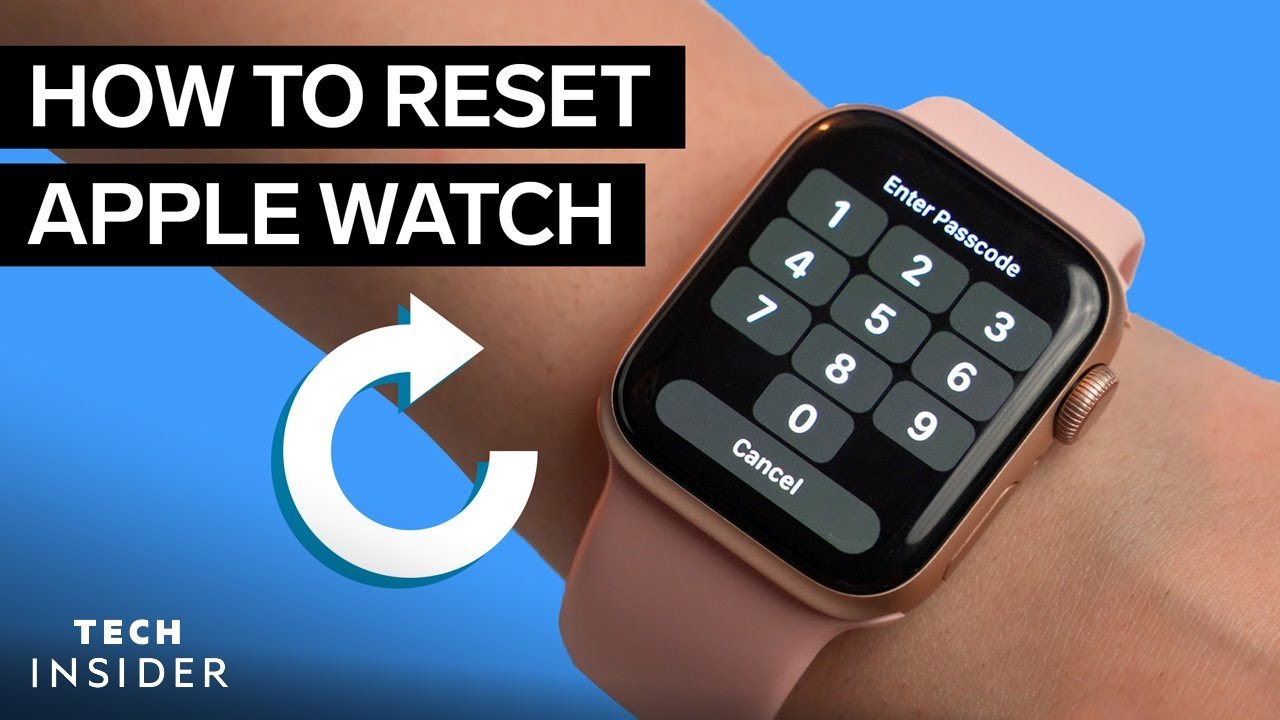
Resetting an Apple Watch is useful when you want to fix software problems, pair it with a new iPhone, sell it, give it away, or start fresh. The best method depends on whether you still have the paired iPhone, remember the passcode, or need to remove Activation Lock. This guide explains how to reset apple watch in a clear and practical way.
Introduction
Knowing how to reset apple watch is important for every Apple Watch user because a reset can solve many common problems and prepare the device for a new setup. Over time, an Apple Watch may become slow, stop pairing correctly, show repeated errors, or face syncing issues with the iPhone. In other cases, you may want to reset it because you are upgrading to a newer model, selling your current watch, giving it to a family member, or pairing it with another iPhone. Resetting sounds simple, but there are different reset methods, and choosing the wrong one can create problems, especially if Activation Lock remains active or your data is not backed up properly. That is why it is useful to understand the difference between unpairing, erasing, factory resetting, and resetting without a passcode.
A proper reset removes your personal data, settings, apps, cards, and watch preferences from the device. However, it does not always remove the Apple Account connection unless you reset it through the correct method. For most users, the safest way is to reset the Apple Watch through the Apple Watch app on the paired iPhone, because this method can create a backup and remove Activation Lock at the same time. If you do not have your iPhone nearby, you can still erase the watch from its own settings, but that method may not remove Activation Lock. This article explains everything in a human, simple, and informative way so you can reset your Apple Watch confidently without losing important information unnecessarily.
What Does Resetting an Apple Watch Mean?
Resetting an Apple Watch means erasing its content and returning it to factory settings. In simple words, it makes the watch look and behave like it did when it was first taken out of the box. After a full reset, the device no longer keeps your apps, messages, health settings, watch faces, downloaded music, Apple Pay cards, Wi-Fi settings, or personal preferences. This is why a reset is helpful when your watch is not working normally or when you want another person to use it. However, resetting is not the same as restarting. A restart simply turns the watch off and on again, while a reset removes data and settings. Many users confuse these two actions, but they are very different.
A reset can also mean different things depending on how you perform it. If you reset through the paired iPhone by unpairing the watch, your iPhone usually creates a backup first and removes the watch from your Apple Account. This is the recommended method before selling, trading, or giving away the device. If you reset directly from the Apple Watch settings, the device is erased, but it may still be connected to your Apple Account through Activation Lock. This means another person may not be able to set it up without your Apple Account details. Therefore, when learning how to reset apple watch, it is important to know not only the steps but also the result of each reset method.
When Should You Reset Your Apple Watch?
You should reset your Apple Watch when basic troubleshooting does not fix the issue or when you are preparing the device for a new owner. For example, if your Apple Watch keeps freezing, refuses to pair, drains battery unusually fast, does not sync health data properly, or shows repeated software problems, a reset may help restore normal performance. Sometimes, a watchOS update or app conflict can also create problems that are difficult to fix with a simple restart. In such cases, resetting gives the device a clean start and removes corrupted settings that may be causing the issue.
You may also need to reset your Apple Watch before selling it, trading it in, sending it for repair, or giving it to someone else. This is important because the watch may contain private information such as messages, fitness history, notifications, wallet cards, email alerts, call records, and app data. A reset protects your privacy by removing personal content from the device. If you are switching to a new iPhone, resetting or unpairing may also be part of the process, especially if the watch is still linked to your old phone. In all these situations, understanding how to reset apple watch helps you avoid pairing errors and account lock issues later.
Things to Do Before Resetting Your Apple Watch
Before resetting, make sure you know why you are resetting the Apple Watch and whether you need a backup. If you plan to use the watch again with the same iPhone or a new iPhone, backing up your data is important. Apple Watch backups are usually connected to your paired iPhone, and when you unpair the watch through the iPhone, a backup is normally created during the process. This backup can later be used to restore your settings, apps, and preferences when you pair the watch again. However, if you erase directly from the watch, the process may not create the same kind of fresh backup.
You should also keep your iPhone and Apple Watch close together if you are using the iPhone method. Make sure both devices have enough battery or are connected to power. If your Apple Watch has a cellular plan, decide whether you want to keep or remove the plan. If you are going to use the watch again yourself, you may want to keep the cellular plan. If you are selling, giving away, or trading in the watch, you should remove the cellular plan and contact your carrier if needed. You should also know your Apple Account password, because it may be required to turn off Activation Lock during the unpairing process. These small preparations can save time and prevent problems.
How to Reset Apple Watch Using iPhone
The best and safest way to reset Apple Watch is by using the paired iPhone. This method is recommended because it does more than erase the watch. It also unpairs the device, creates a backup, removes it from your Apple Account, and turns off Activation Lock when completed properly. To begin, keep your Apple Watch and iPhone close together. Open the Apple Watch app on your iPhone, then go to the My Watch tab. Tap All Watches at the top of the screen, then tap the information button next to the watch you want to reset. From there, choose Unpair Apple Watch and confirm your decision.
During this process, you may be asked whether you want to keep or remove your cellular plan. If you are going to pair the same Apple Watch again with your own iPhone, keeping the plan may be useful. If you are selling or giving away the watch, removing the plan is the better choice. You may also need to enter your Apple Account password to remove Activation Lock. After confirmation, the iPhone will start unpairing and erasing the Apple Watch. The process may take a few minutes, so do not interrupt it. Once it is complete, the watch will return to the setup screen, and it will be ready to pair again or pass to a new owner.
How to Reset Apple Watch Without iPhone
If you do not have the paired iPhone with you, you can reset the Apple Watch directly from the watch settings. This method is useful when the iPhone is lost, unavailable, damaged, or no longer near you. To do this, open the Settings app on your Apple Watch, tap General, scroll down, and tap Reset. Then choose Erase All Content and Settings. If the watch asks for your passcode, enter it. If you have a cellular Apple Watch, you may be asked whether you want to keep or remove the cellular plan. Choose the option that matches your situation.
This method erases your data and returns the Apple Watch to factory settings, but it is important to understand one major limitation. Resetting directly from the watch does not always remove Activation Lock. That means the watch may still be linked to your Apple Account, and another person may not be able to use it until Activation Lock is removed. If you are resetting the watch only for yourself, this may not be a problem. However, if you are selling or giving away the Apple Watch, it is better to unpair it using the iPhone method whenever possible. If you cannot access the iPhone, you may need to remove the device from your Apple Account separately.
How to Reset Apple Watch If You Forgot the Passcode
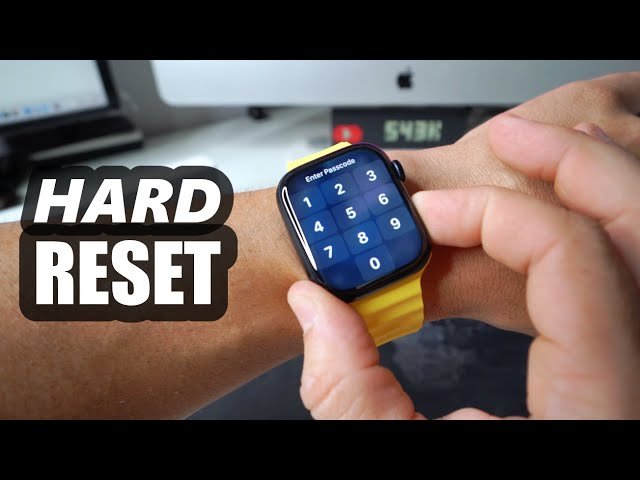
Forgetting the Apple Watch passcode can be frustrating, but you can still reset the device. If the watch is locked and you cannot access the settings, place the Apple Watch on its charger. Press and hold the side button until the power options appear. Depending on the watchOS version, you may see an erase option after pressing and holding the Digital Crown or following the on-screen reset instructions. Choose Erase All Content and Settings and confirm the reset. The watch will erase itself and return to the setup screen after the process is finished.
If you still have the paired iPhone, you may also be able to reset the watch from the Apple Watch app. Open the app, go to My Watch, tap General, then tap Reset, and choose the erase option for Apple Watch content and settings. This can help if you cannot remember the passcode but still have access to the paired iPhone. After the reset, you can pair the watch again and restore it from a backup if one is available. Remember that erasing the watch removes the passcode, but Activation Lock may still require your Apple Account details when setting up again.
Difference Between Unpairing and Erasing Apple Watch
Unpairing and erasing may sound similar, but they are not exactly the same. Unpairing means disconnecting the Apple Watch from the iPhone it is currently paired with. When done through the Apple Watch app on the iPhone, unpairing normally erases the watch, creates a backup, removes the device from the account, and turns off Activation Lock. This is the most complete reset method and is usually the best choice when you want to sell, trade, or give away the watch.
Erasing means removing all content and settings from the Apple Watch itself. This can be done directly from the watch settings or sometimes through the iPhone. Erasing returns the watch to factory settings, but it may not fully remove the watch from your Apple Account. This is why someone else may still see Activation Lock when trying to set up the watch. The simple rule is this: if you want to keep using the watch yourself, erasing may be enough. If another person will use the watch, unpairing through the iPhone is the better and safer option.
How to Reset Apple Watch for Selling or Giving Away
If you are selling or giving away your Apple Watch, you must reset it carefully to protect your personal information and make sure the next owner can use it. The best way is to unpair it from your iPhone. Keep both devices near each other, open the Apple Watch app, go to All Watches, tap the information button, and choose Unpair Apple Watch. If asked, remove the cellular plan unless you are keeping the plan for another Apple Watch. Enter your Apple Account password when required so Activation Lock can be removed.
This step is very important because Activation Lock is designed to protect your Apple Watch if it is lost or stolen. However, if you forget to remove it before selling the device, the new owner may not be able to pair or use the watch. After unpairing is complete, the watch should show the setup screen. At that point, your personal content should be erased, and the watch should be ready for the next person. It is also a good idea to make sure the device is no longer listed under your Apple Account devices before handing it over.
How to Reset Apple Watch for Pairing With a New iPhone
If you bought a new iPhone and want to use your existing Apple Watch with it, you may need to reset or unpair the watch from the old iPhone first. The best approach depends on whether you still have the old iPhone. If you do, unpair the Apple Watch from the old iPhone before pairing it with the new one. This helps create a backup and removes the old pairing connection. Once your new iPhone is ready, open the Apple Watch app and start the pairing process. When asked, choose to restore from a backup if you want your previous settings back.
If you no longer have the old iPhone, you may need to erase the Apple Watch directly from the watch and then pair it with the new iPhone. However, the setup process may still ask for the Apple Account used before because of Activation Lock. This is normal if the watch is still connected to your account. Enter the correct Apple Account details to continue. If you are the original owner, this should not be a problem. If you bought the watch used and it is still locked to someone else’s account, only the previous owner can remove that lock.
Common Problems During Apple Watch Reset
Sometimes, the reset process does not go smoothly. One common issue is that the Apple Watch stays stuck on the Apple logo or takes too long to erase. In that case, make sure the watch has enough battery and keep it on the charger. Another common problem is that the watch asks for an Apple Account after reset. This usually means Activation Lock is still active. If it is your watch, enter your Apple Account details. If you purchased the watch from someone else, contact the previous owner and ask them to remove it from their account.
Another issue is that the Apple Watch does not appear in the Watch app on the iPhone. This can happen if Bluetooth is off, the devices are not close enough, the iPhone is using Airplane Mode, or the watch is already partially disconnected. Try restarting both devices, turning Bluetooth and Wi-Fi on, and keeping the watch near the iPhone. If the watch still does not connect, resetting directly from the watch may be necessary. However, remember that direct reset may not remove Activation Lock, so it is best used when you are keeping the watch yourself or when you can still access the Apple Account used on the device.
Does Resetting Apple Watch Delete Everything?
A full reset deletes almost everything stored directly on the Apple Watch. This includes apps, settings, watch faces, downloaded media, Apple Pay cards, notifications, and local data. However, some information may still be saved in your iPhone backup, iCloud, or related Apple services depending on your settings. For example, health and activity data may be preserved if your iPhone and iCloud settings are configured to save that data. This is why resetting the watch does not always mean losing everything forever, especially if you restore from a backup during setup.
Still, you should treat a reset as a serious action. Once the Apple Watch is erased, you cannot browse the old watch data directly from the device. If you need your settings and app layout later, unpairing with the iPhone is the safest option because it usually creates a backup first. If your goal is only to fix a small issue, try restarting, updating, or checking settings before doing a complete reset. A reset is powerful, but it should be used carefully.
Best Method to Reset Apple Watch
The best method depends on your situation, but for most users, resetting through the paired iPhone is the safest and most complete option. It backs up the watch, unpairs it properly, removes Activation Lock, and prepares the device for a clean setup. This is the method you should choose if you are selling the watch, giving it away, trading it in, or moving to another device. It reduces the risk of account lock problems and keeps your data safer.
Resetting directly from the Apple Watch is useful when you do not have the iPhone or cannot access it. It is also helpful when the watch is not pairing correctly and you simply need a fresh start. However, direct reset has limitations because it may leave Activation Lock in place. Resetting without a passcode is useful when you are locked out, but it should be done carefully because it erases the device. When deciding how to reset apple watch, always choose the method that matches your goal: personal troubleshooting, new iPhone pairing, passcode recovery, or preparing the watch for someone else.
FAQs
1. How do I reset my Apple Watch completely?
To reset your Apple Watch completely, the best method is to unpair it from your iPhone using the Apple Watch app. Open the app, go to My Watch, tap All Watches, choose the information button next to your watch, and tap Unpair Apple Watch. This erases the watch and removes it from your Apple Account when done properly.
2. Can I reset Apple Watch without my iPhone?
Yes, you can reset Apple Watch without your iPhone by opening Settings on the watch, going to General, tapping Reset, and choosing Erase All Content and Settings. This erases the watch, but it may not remove Activation Lock, so the Apple Account may still be required later.
3. Will resetting Apple Watch remove Activation Lock?
Resetting directly from the Apple Watch usually does not remove Activation Lock. To remove Activation Lock properly, you should unpair the Apple Watch from the paired iPhone and enter your Apple Account password when asked. This is especially important before selling or giving away the watch.
4. What should I do if I forgot my Apple Watch passcode?
If you forgot your Apple Watch passcode, you can erase the watch while it is on its charger by using the reset option shown during the power and erase process. You can also use the paired iPhone through the Apple Watch app if the watch is still connected. After erasing, you can set it up again and restore from a backup if available.
5. Does resetting Apple Watch delete health and activity data?
Resetting deletes data stored on the Apple Watch, but your health and activity data may still be available through your iPhone or iCloud depending on your backup and sync settings. To protect your data, use the iPhone unpairing method whenever possible because it usually creates a backup before erasing the watch.
Conclusion
Learning how to reset apple watch is useful whether you are fixing problems, changing phones, recovering from a forgotten passcode, or preparing the watch for a new owner. The safest method is to unpair the Apple Watch through the paired iPhone because it can back up your data, erase the device, remove Activation Lock, and prepare the watch for setup again. This method is strongly recommended before selling, giving away, or trading in the device. If your iPhone is not available, you can erase the Apple Watch directly from its settings, but you should remember that Activation Lock may still remain.
A reset should always be done carefully because it removes personal content and settings from the watch. Before starting, make sure your devices are charged, your iPhone is nearby if you are using the iPhone method, and you know your Apple Account password. If you have a cellular model, decide whether to keep or remove the plan based on your future use. With the right method, resetting your Apple Watch is simple, safe, and effective. Whether you want a fresh start or a clean handover, following the correct reset steps will help you avoid data loss, pairing issues, and Activation Lock problems.
You May Also Read
for more visit wirebusiness.co.uk
